
HiTCF User Guide
HiTCF is more than a question bank — it's a complete TCF Canada study experience. This guide walks through every feature, step by step, so you get the most out of each practice session.
Last updated: 2026-06-18
1. Getting started
Create an account, pick what to study, then choose how to practice.
- Sign up with your email — a verification code confirms it in about 30 seconds.
- Browse by subject (Listening, Reading, Speaking, Writing) and open a test set.
- Use Practice mode to work through questions one at a time with full explanations, or Exam mode for a timed, realistic simulation.
2. Listening practice
Every listening item ships with original audio. Play, replay, change speed (0.5×–1.25×) or loop a segment, and read the transcript with sentence-by-sentence French–English–Chinese translation. Tap any sentence to replay just that line.
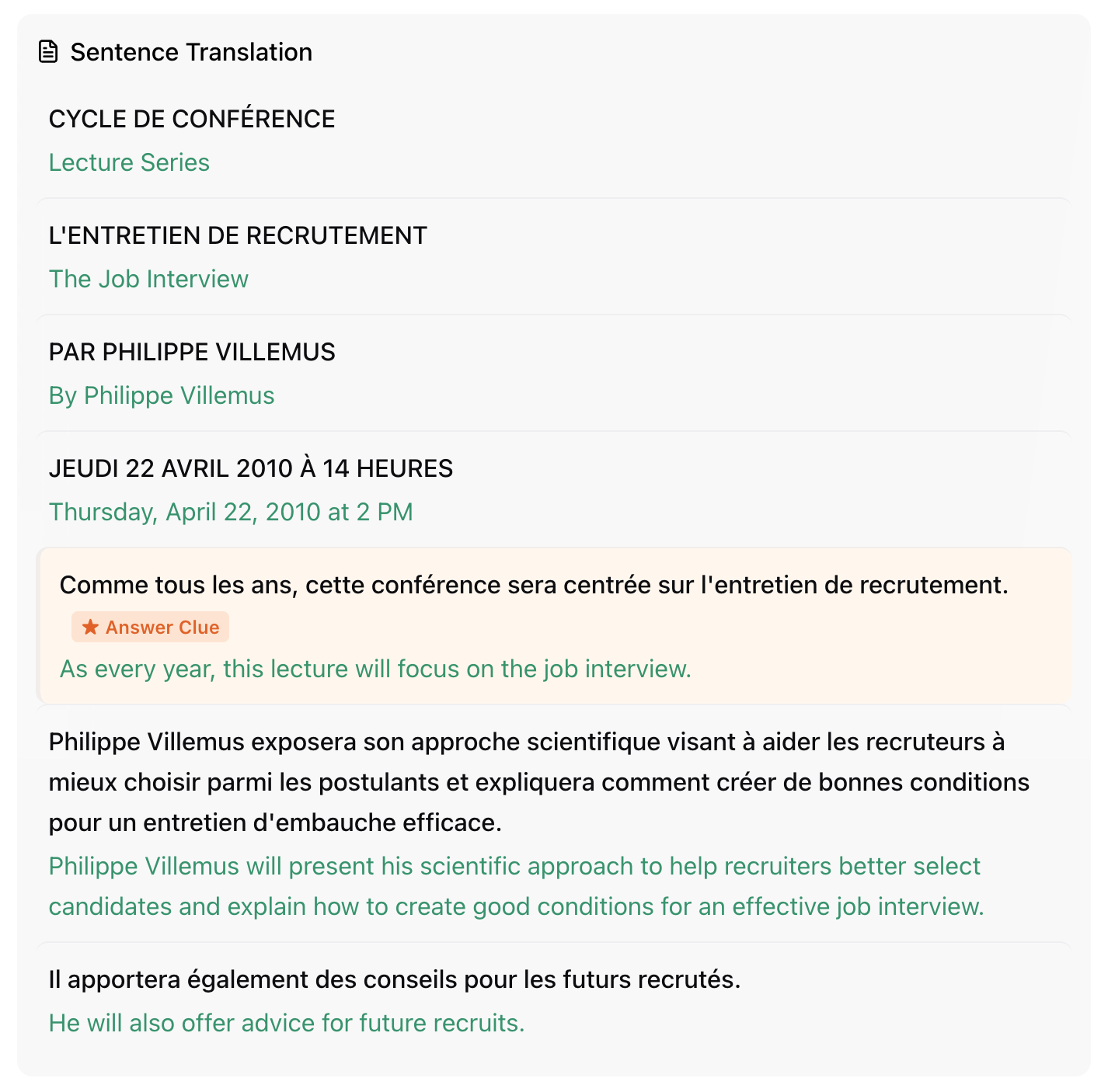
3. Intensive listening
For the sentences you keep missing, open Intensive mode: loop a single sentence, slow it down, type what you hear and compare it against the transcript with a word-level diff, then reveal the answer.
4. Reading practice
Read the passage, answer, then study the sentence-by-sentence translation and the explanation that unlocks after you answer.
5. Word lookup cards
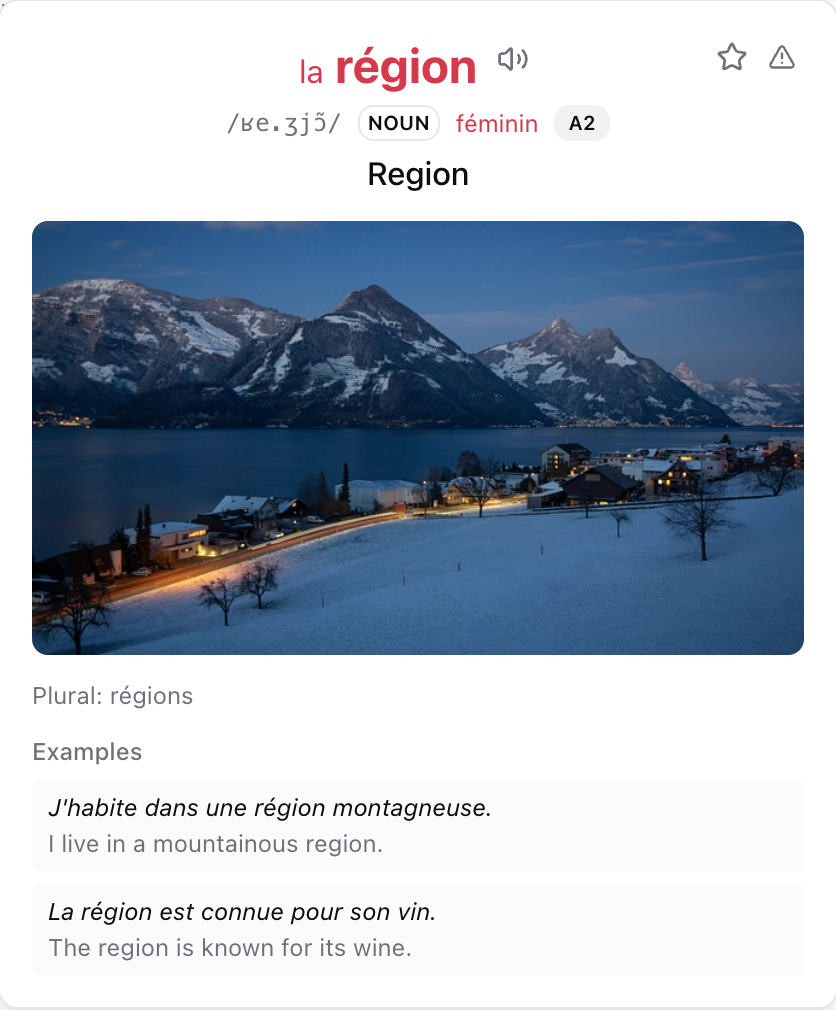
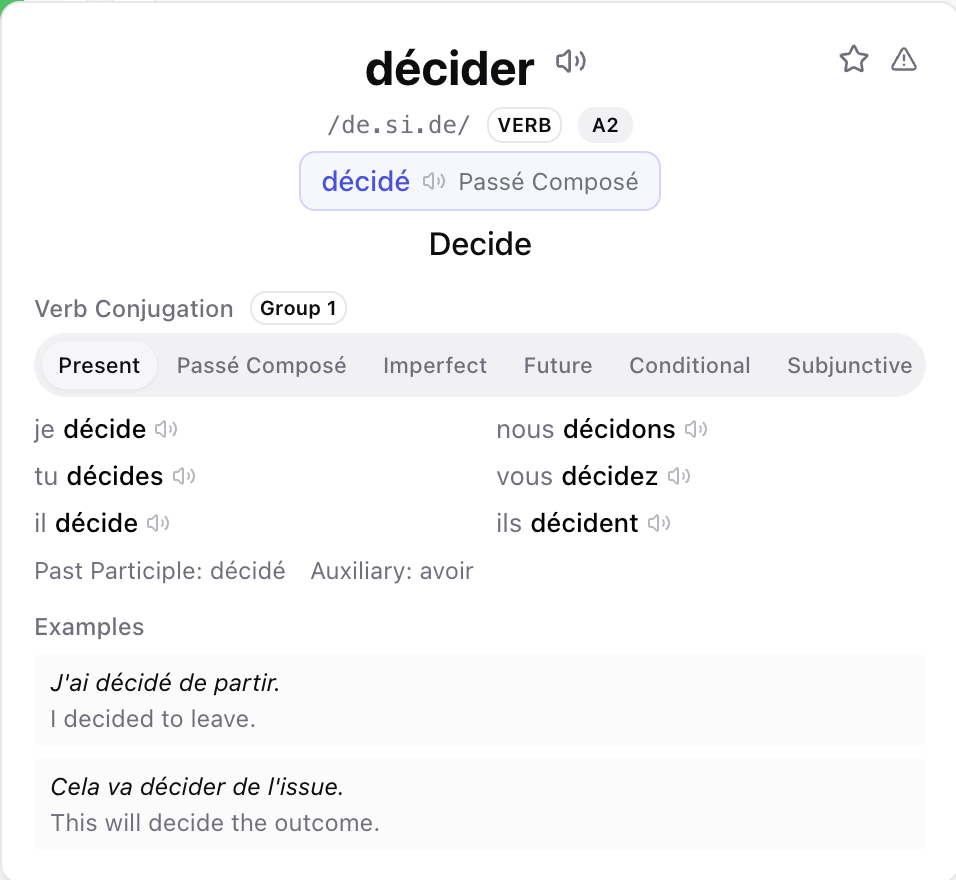
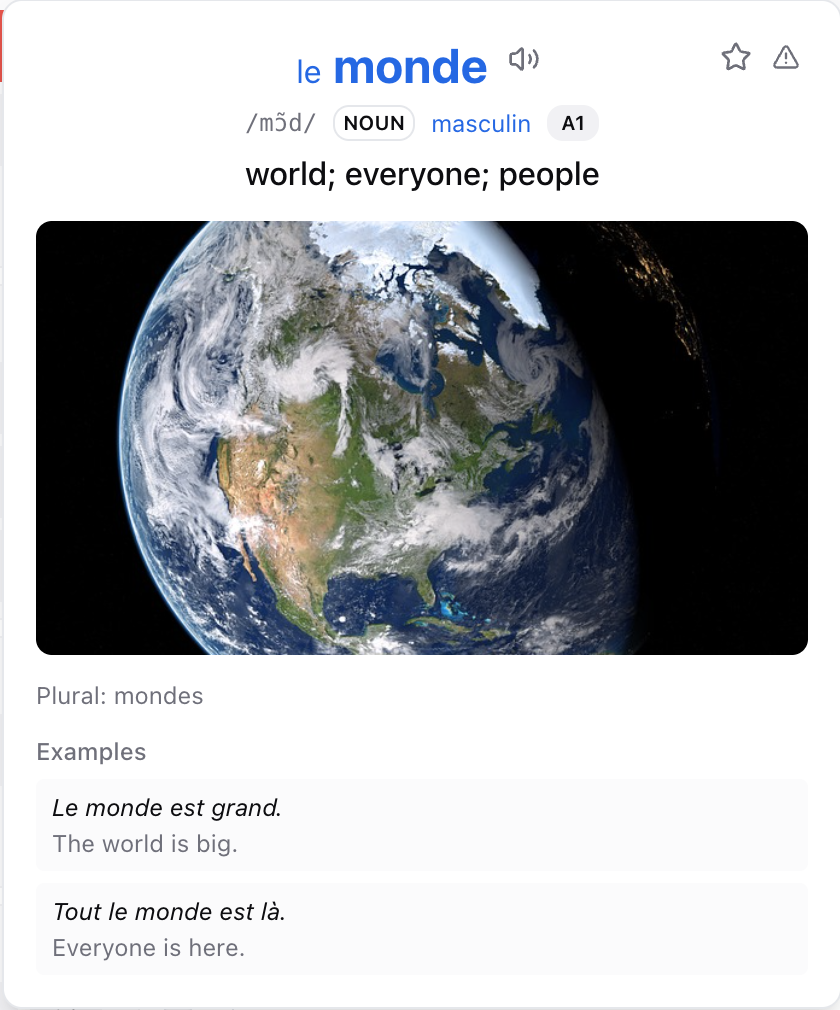
Tap any word in a passage or transcript to open its card: gender shown by color, full verb conjugations, instant pronunciation, and one-tap saving to your vocabulary notebook.
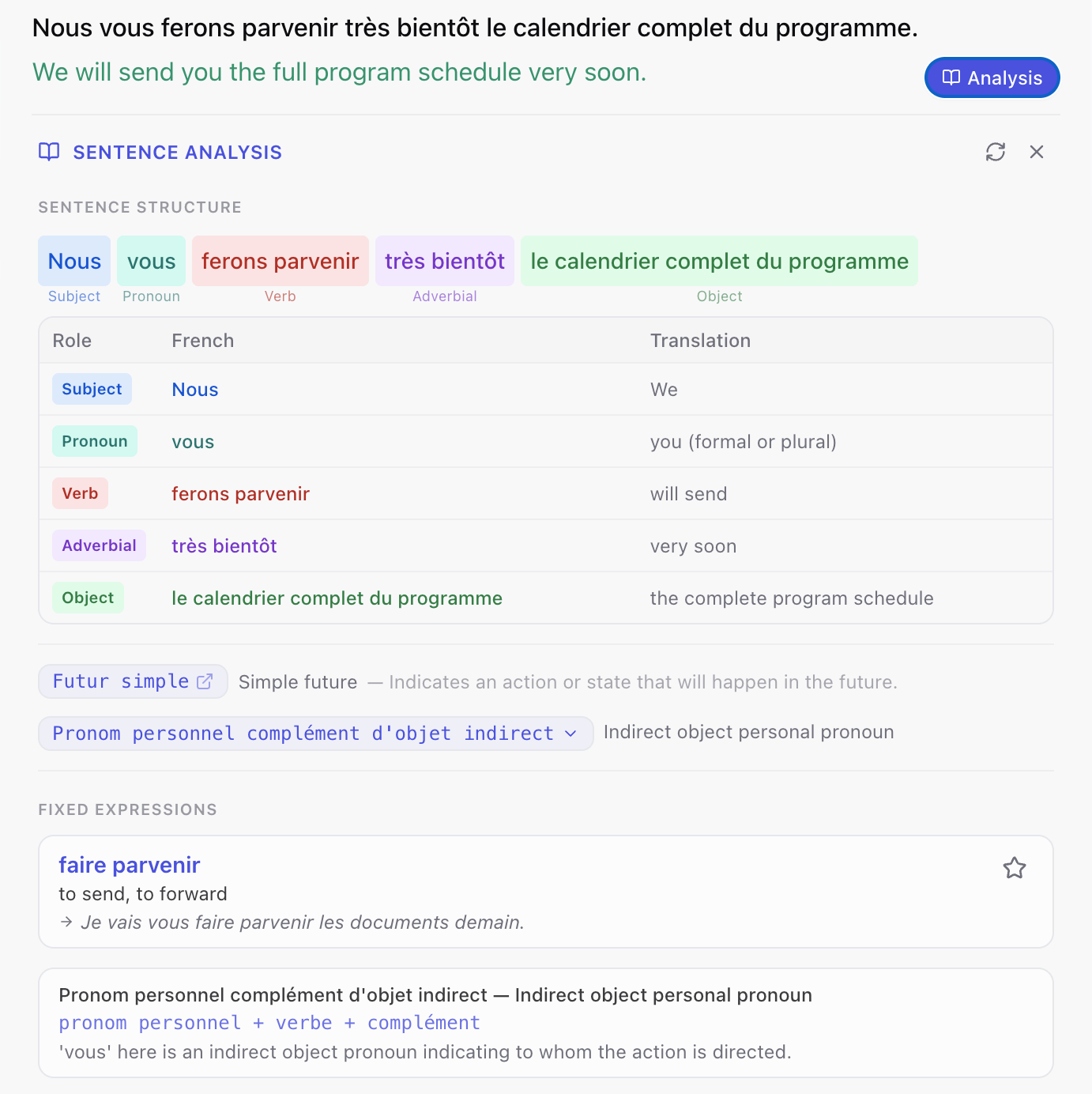
6. Sentence analysis
Tap a sentence to break it down — grammatical roles, tense, fixed collocations and grammar points — with quick-reference grammar cards. Collocations can be saved to your vocabulary pool in one tap.
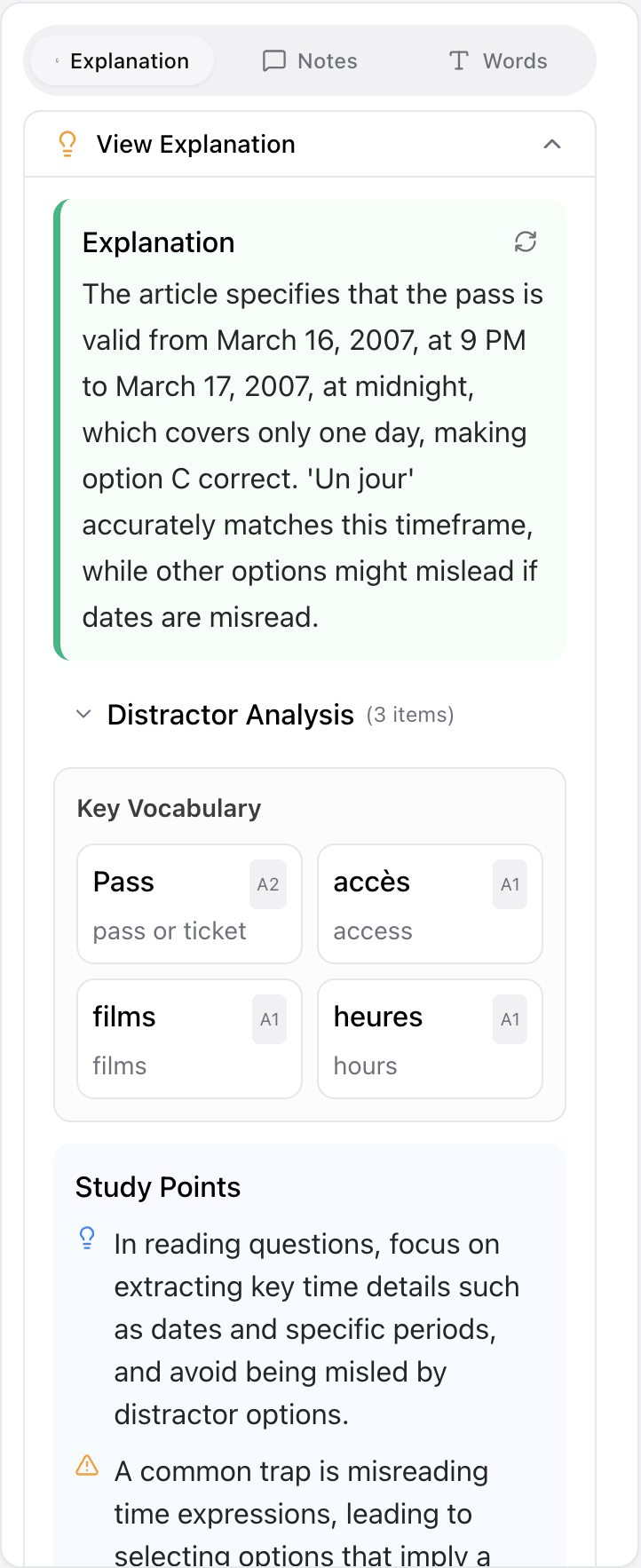
7. Answer explanations
More than right or wrong — each distractor is analyzed, key vocabulary is highlighted, and the reasoning helps you generalize to similar questions.
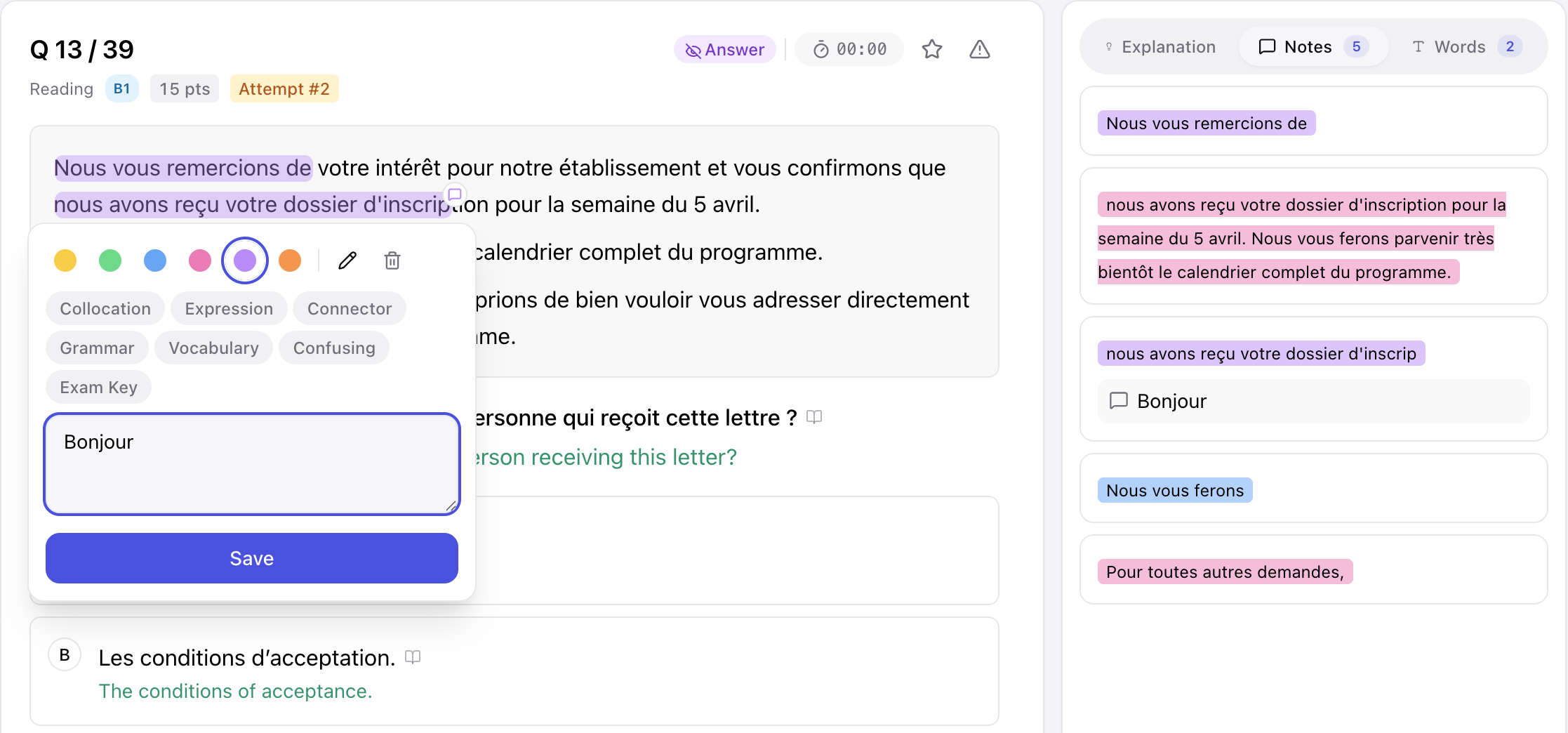
8. Highlights & notes
Highlight any sentence in six colors, tag it (collocation, grammar, exam key…) and add a note. Everything is collected on the Review → Notes page, where each note now carries its original sentence and translation for context.
9. Wiki cards for names & places
Proper nouns in passages and transcripts open an instant card: photo, pronunciation and a Wikipedia summary in your language — no need to stop and look up who or where.

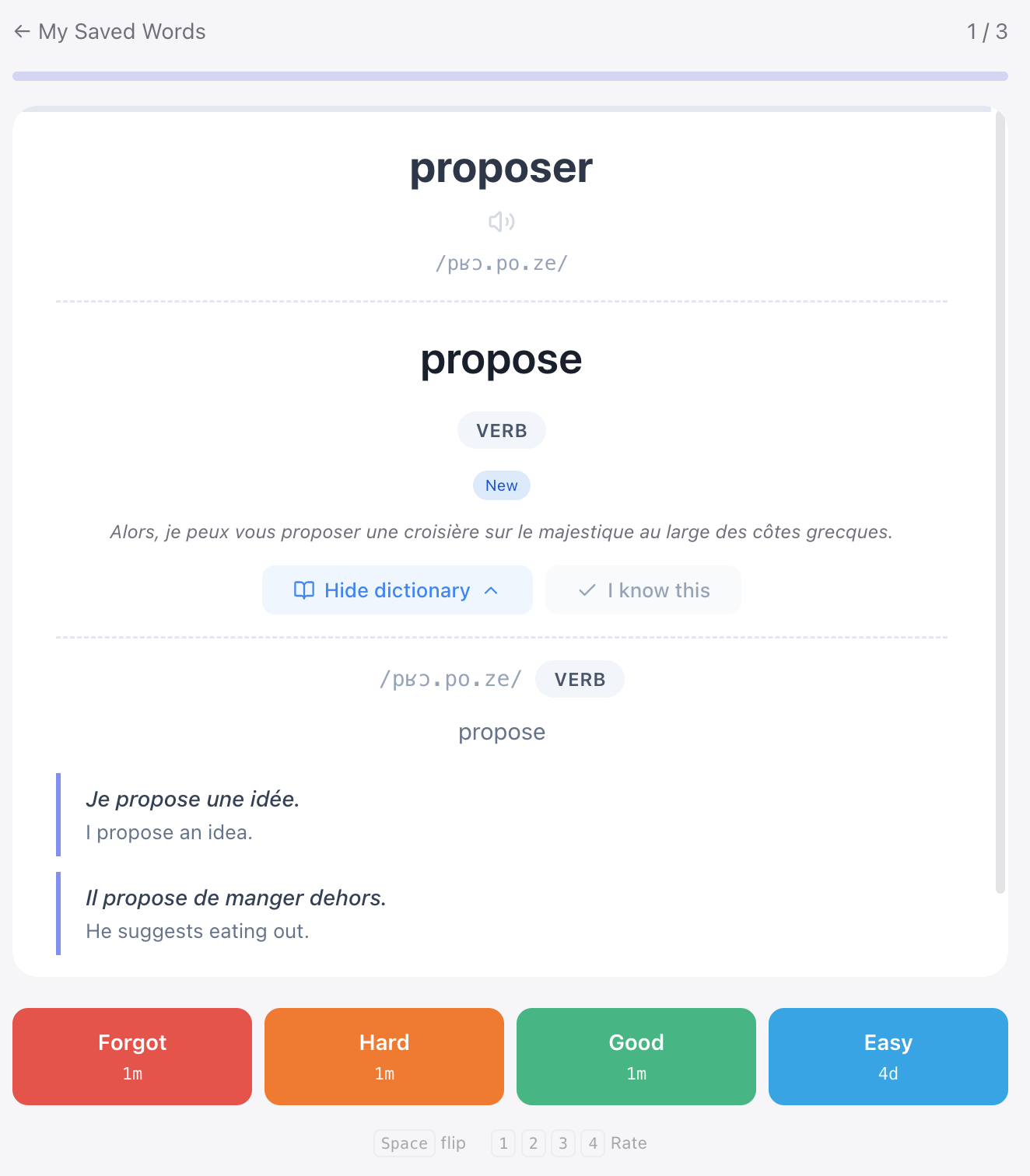
10. Vocabulary notebook & flashcards
Saved words automatically become flashcards and dictation drills. Spaced repetition (SRS) moves them from recognized to remembered.
11. Wrong answers & bookmarks
Every question you miss goes into your Wrong-Answers book and resurfaces on an SM-2 spaced-repetition schedule. Star any question to bookmark it for focused review.
12. Mock exam
Run a timed simulation (Listening ≈ 35 min + Reading ≈ 60 min). Answers are scored automatically and mapped to a level so you can track readiness.
13. Speaking practice
Practice Tâche 2 and Tâche 3, hold a live conversation with an AI examiner, and get AI scoring plus targeted feedback on your answers.
14. Writing practice
Practice short messages and argumentative essays. The prompt comes with sentence-by-sentence translation, and your draft gets AI grading plus model answers to learn from.
15. Review & progress
The Review book gathers three tabs — wrong answers, bookmarks and notes — while the readiness dashboard tracks how close you are to your CLB 7+ goal.
Ready to start?
Browse the question bank and start practicing — registration takes about 30 seconds.